· Dan · ConnectWise · 2 min read
Process Incoming Email with Mailgun


How to parse inbound email with Mailgun and action it with tickets or other integrations.
Overview
Did you know Mailgun can also process inbound emails? You can have Mailgun send directly to an n8n webhook for processing of emails.
The Workflow
Double-click nodes above to view settings, or copy nodes to paste directly into your n8n workflow.
{
"nodes": [
{
"parameters": {
"httpMethod": "POST",
"path": "00000000-bf3f-f3fc-3fcd-fcdd92c14a1e-mailgun-alerts",
"responseMode": "lastNode",
"options": {}
},
"type": "n8n-nodes-base.webhook",
"typeVersion": 2.1,
"position": [
0,
-32
],
"id": "53d4d0b0-ae2f-4102-82c8-6ee126a5a166",
"name": "Webhook",
"webhookId": "00000000-bf3f-f3fc-3fcd-fcdd92c14a1e"
},
{
"parameters": {
"rules": {
"values": [
{
"conditions": {
"options": {
"caseSensitive": true,
"leftValue": "",
"typeValidation": "strict",
"version": 2
},
"conditions": [
{
"leftValue": "={{ $json.body.To }}",
"rightValue": "[email protected]",
"operator": {
"type": "string",
"operation": "contains"
},
"id": "c93e43f5-5307-4891-81bc-1b0114ae5810"
}
],
"combinator": "and"
},
"renameOutput": true,
"outputKey": "addigy"
}
]
},
"options": {}
},
"type": "n8n-nodes-base.switch",
"typeVersion": 3.2,
"position": [
224,
64
],
"id": "becf1fd0-37ae-42d3-8b31-240c55e281a4",
"name": "Switch"
},
{
"parameters": {
"dataToSave": {
"values": [
{
"key": "to",
"value": "={{ $json.body.To }}"
},
{
"key": "subject",
"value": "={{ $json.body.Subject }}"
},
{
"key": "messageId",
"value": "={{ $json.body[\"Message-Id\"] }}"
}
]
}
},
"type": "n8n-nodes-base.executionData",
"typeVersion": 1.1,
"position": [
224,
-128
],
"id": "76d0c2d0-c61d-4aca-b457-538900fd43e9",
"name": "Execution Data"
},
{
"parameters": {
"resource": "ticket",
"summary": "={{ $json.body.Subject }}",
"board": 11,
"status": 119,
"priority": 4,
"initialDescription": "={{ $json.body[\"stripped-text\"] }}",
"additionalTicketFields": {}
},
"type": "@mspcopilot/n8n-nodes-connectwise.connectWisePsa",
"typeVersion": 1,
"position": [
432,
64
],
"id": "c2ec76fb-58d2-4485-b7e6-0a548bc0dea5",
"name": "Create a ticket",
"credentials": {
"connectWisePsaApi": {
"id": "YOUR_CREDENTIAL_ID",
"name": "API account"
}
}
}
],
"connections": {
"Webhook": {
"main": [
[
{
"node": "Switch",
"type": "main",
"index": 0
},
{
"node": "Execution Data",
"type": "main",
"index": 0
}
]
]
},
"Switch": {
"main": [
[
{
"node": "Create a ticket",
"type": "main",
"index": 0
}
]
]
},
"Create a ticket": {
"main": [
[]
]
}
},
"pinData": {
"Webhook": [
{
"headers": {
"host": "n8n.yourmsp.com",
"user-agent": "Go-http-client/2.0",
"content-length": "16573",
"accept": "*/*",
"accept-encoding": "gzip",
"content-type": "multipart/form-data; boundary=6f73de4cb29531be5bd5505c9ced8f2bf84c12aea0ea1642dbc82e8dd2fe",
"x-forwarded-host": "n8n.yourmsp.com",
"x-forwarded-proto": "https"
},
"params": {},
"query": {},
"body": {
"X-Mailgun-Variables": "{\"my_var_1\": \"Mailgun Variable #1\", \"my-var-2\": \"awesome\"}",
"X-Test-Many": "v3",
"Content-Type": "multipart/mixed; boundary=\"------------020601070403020003080006\"",
"message-headers": "[[\"Received\",\"by luna.mailgun.net with SMTP mgrt 8788212249833; Fri, 26 Apr 2013 18:50:30 +0000\"],[\"Received\",\"from [192.168.1.100] (Unknown [192.168.1.100]) by mxa.mailgun.org with ESMTP id 517acc75.4b341f0-worker2; Fri, 26 Apr 2013 18:50:29 -0000 (UTC)\"],[\"Message-Id\",\"<[email protected]>\"],[\"Date\",\"Fri, 26 Apr 2013 11:50:29 -0700\"],[\"From\",\"Bob <[email protected]>\"],[\"User-Agent\",\"Mozilla/5.0 (X11; Linux x86_64; rv:17.0) Gecko/20130308 Thunderbird/17.0.4\"],[\"Mime-Version\",\"1.0\"],[\"To\",\"Alice <[email protected]>\"],[\"Subject\",\"Re: Sample POST request\"],[\"References\",\"<[email protected]>\"],[\"In-Reply-To\",\"<[email protected]>\"],[\"X-Mailgun-Variables\",\"{\\\"my_var_1\\\": \\\"Mailgun Variable #1\\\", \\\"my-var-2\\\": \\\"awesome\\\"}\"],[\"X-Test-Upsert\",\"C'est très bien!\"],[\"X-Test-Many\",\"v1\"],[\"X-Test-Many\",\"v2\"],[\"X-Test-Many\",\"v3\"],[\"X-Test-Utf8\",\"Доброго здоровьица!\"],[\"Content-Type\",\"multipart/mixed; boundary=\\\"------------020601070403020003080006\\\"\"],[\"Sender\",\"[email protected]\"]]",
"Mime-Version": "1.0",
"Subject": "Re: Sample POST request",
"In-Reply-To": "<[email protected]>",
"Received": "from [192.168.1.100] (Unknown [192.168.1.100]) by mxa.mailgun.org with ESMTP id 517acc75.4b341f0-worker2; Fri, 26 Apr 2013 18:50:29 -0000 (UTC)",
"Message-Id": "<[email protected]>",
"User-Agent": "Mozilla/5.0 (X11; Linux x86_64; rv:17.0) Gecko/20130308 Thunderbird/17.0.4",
"X-Test-Upsert": "C'est très bien!",
"Sender": "[email protected]",
"body-plain": "Hi Alice,\n\nThis is Bob.\n\nI also attached a file.\n\nThanks",
"recipient": "[email protected]",
"from": "Bob <[email protected]>",
"Date": "Fri, 26 Apr 2013 11:50:29 -0700",
"From": "Bob <[email protected]>",
"To": "Addigy Alerts <[email protected]>",
"X-Test-Utf8": "Доброго здоровьица!",
"body-html": "<html>\n <head>\n <meta content=\"text/html; charset=ISO-8859-1\"\n http-equiv=\"Content-Type\">\n </head>\n <body text=\"#000000\" bgcolor=\"#FFFFFF\">\n <div class=\"moz-cite-prefix\">\n <div style=\"color: rgb(34, 34, 34); font-family: arial,\n sans-serif; font-size: 12.666666984558105px; font-style: normal;\n font-variant: normal; font-weight: normal; letter-spacing:\n normal; line-height: normal; orphans: auto; text-align: start;\n text-indent: 0px; text-transform: none; white-space: normal;\n widows: auto; word-spacing: 0px; -webkit-text-size-adjust: auto;\n -webkit-text-stroke-width: 0px; background-color: rgb(255, 255,\n 255);\">Hi Alice,</div>\n <div style=\"color: rgb(34, 34, 34); font-family: arial,\n sans-serif; font-size: 12.666666984558105px; font-style: normal;\n font-variant: normal; font-weight: normal; letter-spacing:\n normal; line-height: normal; orphans: auto; text-align: start;\n text-indent: 0px; text-transform: none; white-space: normal;\n widows: auto; word-spacing: 0px; -webkit-text-size-adjust: auto;\n -webkit-text-stroke-width: 0px; background-color: rgb(255, 255,\n 255);\"><br>\n </div>\n <div style=\"color: rgb(34, 34, 34); font-family: arial,\n sans-serif; font-size: 12.666666984558105px; font-style: normal;\n font-variant: normal; font-weight: normal; letter-spacing:\n normal; line-height: normal; orphans: auto; text-align: start;\n text-indent: 0px; text-transform: none; white-space: normal;\n widows: auto; word-spacing: 0px; -webkit-text-size-adjust: auto;\n -webkit-text-stroke-width: 0px; background-color: rgb(255, 255,\n 255);\">This is Bob.<span class=\"Apple-converted-space\"> <img\n alt=\"\" src=\"cid:[email protected]\"\n height=\"15\" width=\"33\"></span></div>\n <div style=\"color: rgb(34, 34, 34); font-family: arial,\n sans-serif; font-size: 12.666666984558105px; font-style: normal;\n font-variant: normal; font-weight: normal; letter-spacing:\n normal; line-height: normal; orphans: auto; text-align: start;\n text-indent: 0px; text-transform: none; white-space: normal;\n widows: auto; word-spacing: 0px; -webkit-text-size-adjust: auto;\n -webkit-text-stroke-width: 0px; background-color: rgb(255, 255,\n 255);\"><br>\n I also attached a file.<br>\n <br>\n </div>\n <div style=\"color: rgb(34, 34, 34); font-family: arial,\n sans-serif; font-size: 12.666666984558105px; font-style: normal;\n font-variant: normal; font-weight: normal; letter-spacing:\n normal; line-height: normal; orphans: auto; text-align: start;\n text-indent: 0px; text-transform: none; white-space: normal;\n widows: auto; word-spacing: 0px; -webkit-text-size-adjust: auto;\n -webkit-text-stroke-width: 0px; background-color: rgb(255, 255,\n 255);\">Thanks,</div>\n <div style=\"color: rgb(34, 34, 34); font-family: arial,\n sans-serif; font-size: 12.666666984558105px; font-style: normal;\n font-variant: normal; font-weight: normal; letter-spacing:\n normal; line-height: normal; orphans: auto; text-align: start;\n text-indent: 0px; text-transform: none; white-space: normal;\n widows: auto; word-spacing: 0px; -webkit-text-size-adjust: auto;\n -webkit-text-stroke-width: 0px; background-color: rgb(255, 255,\n 255);\">Bob</div>\n <br>\n On 04/26/2013 11:29 AM, Alice wrote:<br>\n </div>\n <blockquote cite=\"mid:[email protected]\" type=\"cite\">Hi\n Bob,\n <br>\n <br>\n This is Alice. How are you doing?\n <br>\n <br>\n Thanks,\n <br>\n Alice\n <br>\n </blockquote>\n <br>\n </body>\n</html>\n",
"sender": "[email protected]",
"subject": "Re: Sample POST request",
"References": "<[email protected]>",
"attachment-count": "2",
"content-id-map": "{\"<[email protected]>\":\"attachment-1\"}",
"stripped-text": "Hi Alice,\n\nThis is Bob.\n\nI also attached a file.",
"stripped-html": "<html><head>\n <meta content=\"text/html; charset=ISO-8859-1\" http-equiv=\"Content-Type\">\n </head>\n <body text=\"#000000\" bgcolor=\"#FFFFFF\">\n <div class=\"moz-cite-prefix\">\n <div style=\"color: rgb(34, 34, 34); font-family: arial,\n sans-serif; font-size: 12.666666984558105px; font-style: normal;\n font-variant: normal; font-weight: normal; letter-spacing:\n normal; line-height: normal; orphans: auto; text-align: start;\n text-indent: 0px; text-transform: none; white-space: normal;\n widows: auto; word-spacing: 0px; -webkit-text-size-adjust: auto;\n -webkit-text-stroke-width: 0px; background-color: rgb(255, 255,\n 255);\">Hi Alice,</div>\n <div style=\"color: rgb(34, 34, 34); font-family: arial,\n sans-serif; font-size: 12.666666984558105px; font-style: normal;\n font-variant: normal; font-weight: normal; letter-spacing:\n normal; line-height: normal; orphans: auto; text-align: start;\n text-indent: 0px; text-transform: none; white-space: normal;\n widows: auto; word-spacing: 0px; -webkit-text-size-adjust: auto;\n -webkit-text-stroke-width: 0px; background-color: rgb(255, 255,\n 255);\"><br>\n </div>\n <div style=\"color: rgb(34, 34, 34); font-family: arial,\n sans-serif; font-size: 12.666666984558105px; font-style: normal;\n font-variant: normal; font-weight: normal; letter-spacing:\n normal; line-height: normal; orphans: auto; text-align: start;\n text-indent: 0px; text-transform: none; white-space: normal;\n widows: auto; word-spacing: 0px; -webkit-text-size-adjust: auto;\n -webkit-text-stroke-width: 0px; background-color: rgb(255, 255,\n 255);\">This is Bob.<span class=\"Apple-converted-space\"> <img alt=\"\" src=\"cid:[email protected]\" height=\"15\" width=\"33\"></span></div>\n <div style=\"color: rgb(34, 34, 34); font-family: arial,\n sans-serif; font-size: 12.666666984558105px; font-style: normal;\n font-variant: normal; font-weight: normal; letter-spacing:\n normal; line-height: normal; orphans: auto; text-align: start;\n text-indent: 0px; text-transform: none; white-space: normal;\n widows: auto; word-spacing: 0px; -webkit-text-size-adjust: auto;\n -webkit-text-stroke-width: 0px; background-color: rgb(255, 255,\n 255);\"><br>\n I also attached a file.<br>\n <br>\n </div>\n <div style=\"color: rgb(34, 34, 34); font-family: arial,\n sans-serif; font-size: 12.666666984558105px; font-style: normal;\n font-variant: normal; font-weight: normal; letter-spacing:\n normal; line-height: normal; orphans: auto; text-align: start;\n text-indent: 0px; text-transform: none; white-space: normal;\n widows: auto; word-spacing: 0px; -webkit-text-size-adjust: auto;\n -webkit-text-stroke-width: 0px; background-color: rgb(255, 255,\n 255);\">Thanks,</div>\n <div style=\"color: rgb(34, 34, 34); font-family: arial,\n sans-serif; font-size: 12.666666984558105px; font-style: normal;\n font-variant: normal; font-weight: normal; letter-spacing:\n normal; line-height: normal; orphans: auto; text-align: start;\n text-indent: 0px; text-transform: none; white-space: normal;\n widows: auto; word-spacing: 0px; -webkit-text-size-adjust: auto;\n -webkit-text-stroke-width: 0px; background-color: rgb(255, 255,\n 255);\">Bob</div>\n <br>\n On 04/26/2013 11:29 AM, Alice wrote:<br>\n </div>\n <br>\n \n\n</body></html>",
"stripped-signature": "Thanks,\nBob"
},
"webhookUrl": "https://n8n.yourmsp.com/webhook/0000000000000000000-mailgun-alerts",
"executionMode": "production"
}
]
},
"meta": {
"templateCredsSetupCompleted": true,
"instanceId": "c184e9b4530d135cec93024f76caa53accab9229399f0cbe7ab0b73389a579ec"
}
}Setup Instructions
I recommend setting up a dedicated subdomain for receiving alerts. Something like alerts.yourmsp.com.
Additionally, you could setup a single webhook in n8n to process the majority of your smaller alert emails like in the example below where we intercept emails from Addigy to create tickets.
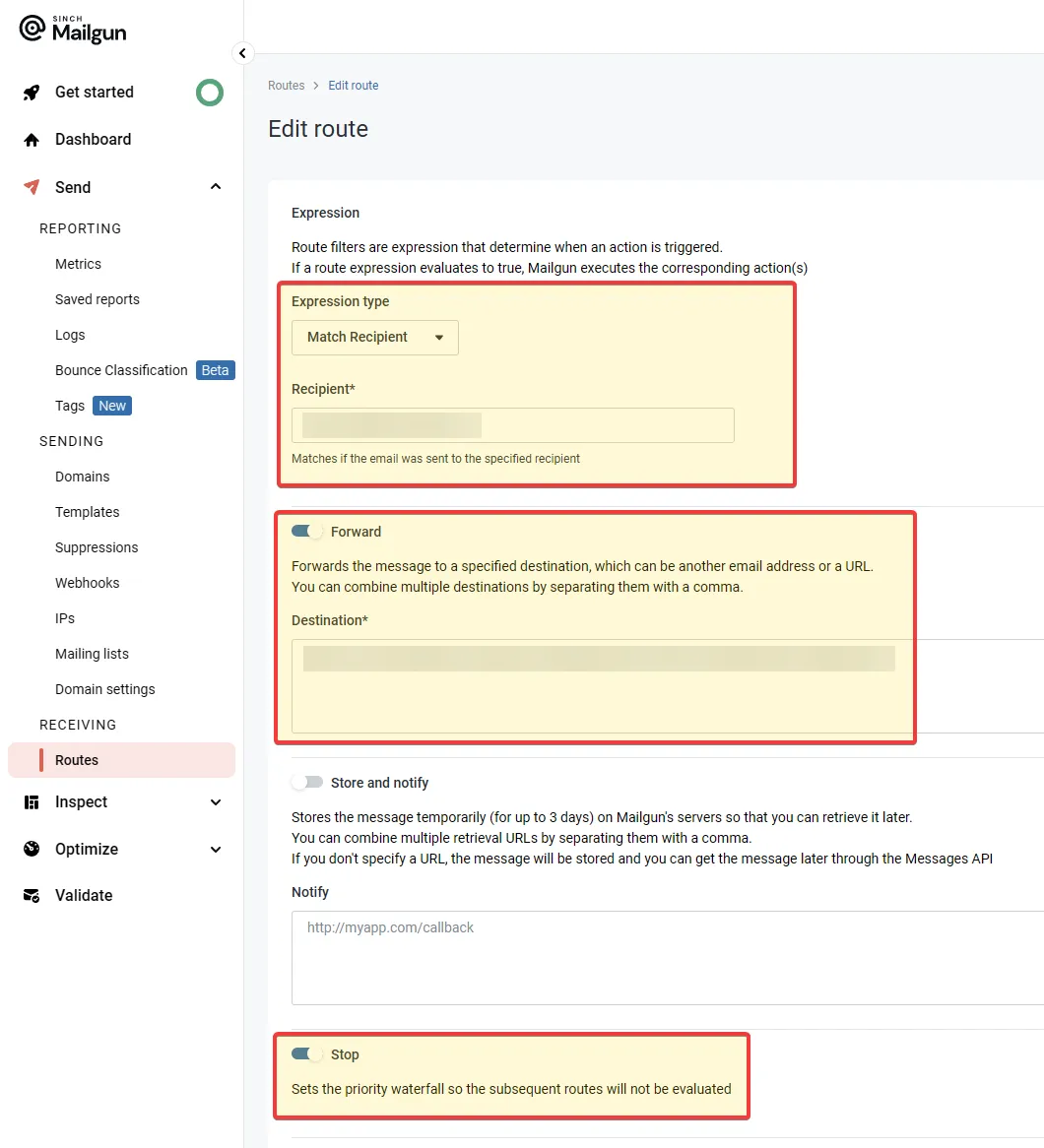
- In Mailgun, navigate to Send > RECEIVING > Routes.
- Add a new new route.
- Set Expression type to Match Recipient and enter something with a wildcard, such as
alerts.*@alerts.yourmsp.com. You can be more specific, or use advanced rules using these filters. - Enable Forward.
- Copy your n8n Webhook URL and paste it in the Destination text field.
- Enable Stop.
- Enter a reasonable description, or even put a link to your n8n workflow.
Recommendations
- Add a descriptive string to the end of your Webhook URLs to make it easier to keep track of. Example:
https://n8n.yourmsp.com/webhook/75b81103-bb6c-517d-8c0c-2dfd45f155581-mailgun-alerts. - Always have an Execution Data node to help with troubleshooting and logging later.
- The webhook in the example is set to Respond When Last Node Finishes. This will cause an error message to be sent back to Mailgun if the workflow fails, causing it to retry. If this isn’t desired, turn it off.
Share