Credentials Setup for n8n
API Key Setup for n8n
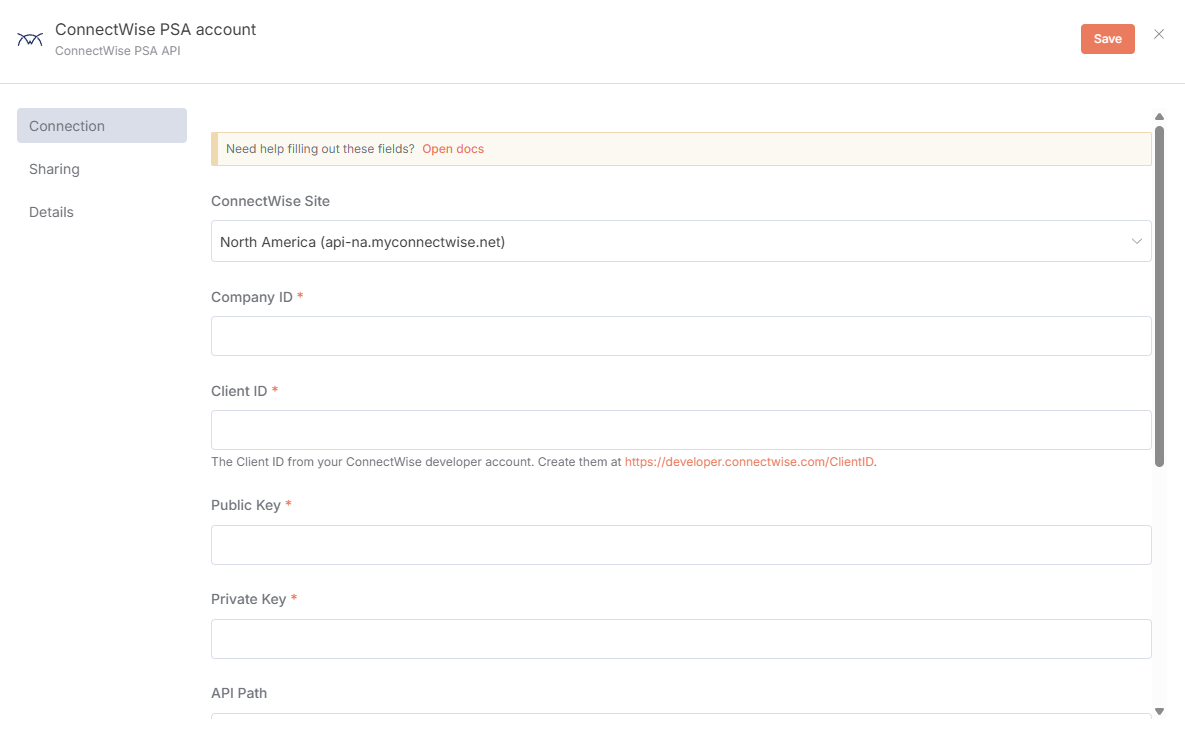
ConnectWise Site: If you are cloud hosted, choose your location. Or custom if you know what you’re doing.
Company ID: This is the same Company ID you use when signing in to ConnectWise PSA.
Client ID: You will need to sign up for a developer account at developer.connectwise.com to obtain a Client ID. This is to identify your custom integration (n8n) with ConnectWise and is required for all requests. They are easy to obtain. Just choose Create New Integration on the ClientID Page after signing up.
Public Key: In ConnectWise, navigate to System > Members and to the API Members tab. Create a member with the security role that makes sense for your integrations. Note that the Member Name shows up in time entries created. On the API Keys tab for that member, select add + and create a meaningful Description. This is only used internally to identify the key in the future.
Private Key: The private key you were shown when creating the API login. I recommend against documenting this anywhere and just re-creating it if you need to.
API Path: Unless troubleshooting, I recommend leaving this blank.
Check for Updates: Periodically poll for updates to the node. This does send your version number when checking. You may also view your current version here too.
Allowed HTTP Request Domains: Recommend setting this to Specified Domains and Allowed Domains to *.myconnectwise.net. This prevents accidental leakage of credentials to a 3rd party site if you accidentally select it.
Access Key (beta): Only needed if you’re using the Ticket Trigger node. Generate an Access Key from MSP Copilot Link and paste it here. The trigger also requires MSPCOPILOT_BETA=true on your n8n instance — see Enabling the Trigger.