ConnectWise PSA API Member Setup for MSP Copilot Link
Link requires read-only access to specific areas of ConnectWise PSA. This guide walks you through the two steps to set up the integration.
Step 1: Create a Security Role
a. In ConnectWise PSA, click System in the left navigation
b. Select Security Roles under the Security section (ConnectWise docs)
c. Click the + button to create a new security role
d. Name it “MSP Copilot”
e. Set the following permissions:
| Add | Edit | Delete | Inquire | |
|---|---|---|---|---|
| Companies | ||||
| Company Maintenance | None | None | None | All |
| Contacts | None | None | None | All (For future use only) |
| Project | ||||
| Project Tickets | None | None | None | All (For future use only) |
| Service Desk | ||||
| Service Tickets | None | None | None | All (For future use only) |
| System | ||||
| Table Setup | None | None | None | All (customize) |
f. For Table Setup, click Customize after setting Inquire to All. Enable access to:
- Company / Company Status
- Company / Company Type
- Service / Service Board
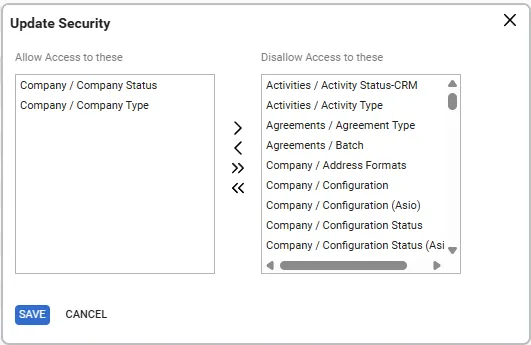
g. Click Save on the Update Security page. h. Save the Security Role.
Step 2: Create an API Member
a. Navigate to System > Members > API Members tab (ConnectWise docs)
b. Click the + button to create a new API member
c. Fill in the required fields:
- Member ID: A unique identifier (e.g.,
MSPCopilot) - Member Name: A display name (e.g.,
MSP Copilot Integration) - Role ID: Select the “MSP Copilot” security role you created earlier
d. Set your preferred defaults for the remaining fields (Location, Department, etc.)
e. Save the API Member, then go to the API Keys tab
f. Click + to add a new key and give it a descriptive label (e.g., MSP Copilot Link)
g. Copy the Public Key and Private Key into Link — the private key is only shown once
h. Click Save
Do not document the private key. Use each API key in only one place.